
Learning Overview
In this project, learners explore how technology improves road safety by using the Calliope Mini to understand how traffic lights work. They will program red, yellow, and green LEDs to turn ON in the correct order and timing, just like real traffic signals. We have included extra challenges that allow learners to experiment with different light sequences and timing patterns, making learning fun and interactive. Through this hands-on experience, learners develop logical thinking, problem-solving skills, and confidence while learning how coding, robotics, and smart systems help keep people safe and cities organized.
What You will Need
| Item | Purpose |
|---|---|
| Calliope Mini | Main microcontroller for programming and controlling the lights |
| Red LED | Represents “STOP” |
| Yellow LED | Represents “READY / CAUTION” |
| Green LED | Represents “GO” |
| Three Resistors (100–220Ω) | Protect the LEDs from high current |
| Jumper Wires | Used to connect LEDs to the Calliope Mini |
| USB Cable | For programming the Calliope Mini |
Understand the Circuit
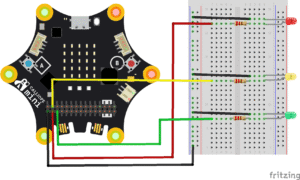
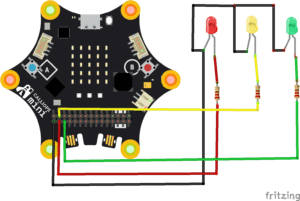
Traffic Light Connections

Connect the Red LED's long leg (+) of the LED to one end of the 220Ω resistor.
- Connect the other end of the resistor to Pin 0 on the Calliope Mini
Connect the Red LED's short leg (–) of the LED to GND on the Calliope Mini
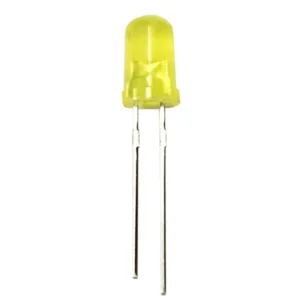
- Connect the Yellow LED's long leg (+) of the LED to one end of the 220Ω resistor.
- Connect the other end of the resistor to Pin 1 on the Calliope Mini
- Connect the Yellow LED's short leg (–) of the LED to GND on the Calliope Mini
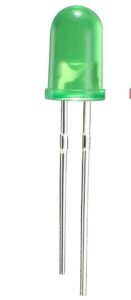
- Connect the Green LED's long leg (+) of the LED to one end of the 220Ω resistor.
- Connect the other end of the resistor to Pin 2 on the Calliope Mini
- Connect the Green LED's short leg (–) of the LED to GND on the Calliope Mini
Tip: Always use a resistor between the LED and Calliope pin to prevent burning out your LED!
The Project Code
Follow these steps carefully to open and explore the project in MakeCode for Calliope Mini:
When you open the link, you will see a few colorful blocks that makes the project.
Next, click Edit Code tab to be directed to the MakeCode editor
Uploading the Code
Plug in your Calliope Mini to your computer using a USB cable, then follow the steps in the video to upload your code and bring your project to life!
Understand the Code
| Code Block | What It Does |
|---|---|
forever | Keeps the traffic light running in a loop |
Red LED ON: digitalWritePin(P0, 1) | Sends a digital HIGH signal to turn on the red light |
Yellow LED ON: digitalWritePin(P1, 1) | Activates the yellow light |
Green LED ON: digitalWritePin(P2, 1) | Turns on the green light |
pause(2000) | Holds the light for 2 seconds |
digitalWritePin(..., 0) | Turns an LED OFF |
| The sequence repeats | Creates a continuous traffic light cycle |
Troubleshooting the code
LED not lighting?
Make sure the LED polarity is correct—long leg = positive, short leg = GND.Wrong color lighting?
Check that each LED is connected to the correct pin (P0, P1, P2).LEDs flicker or stay dim?
Ensure resistors are between 100–220Ω.Program not running?
Confirm the code was downloaded to the Calliope Mini successfully
What You Have Learned
How digital pins control outputs
How traffic lights are programmed in the real world
How to create sequences with timing
How loops work in microcontrollers
Practical robotics and coding skills that connect to real city infrastructure
Extra Challenge
Add a pedestrian button using Pin P3 to trigger a “Walk/Don’t Walk” signal.
Make the traffic light blink yellow at night mode.
Add a sound buzzer for pedestrian beeps—just like real crossings.
Create a four-way intersection using more LEDs and smarter timing.
Build a cardboard mini city and place your traffic lights along “roads.”
AI Extension Ideas
Use Edge Impulse to build, train, and deploy machine learning (ML) models to make their traffic light system intelligent and helpful. The AI learns from traffic patterns, such as how often cars and pedestrians arrive.
For example:
Traffic Flow Predictor: The Calliope checks how often cars “arrive” at the intersection (add a button to your project to simulate a car approaching when pressed). After a few tries, it predicts when the next car will come and changes the lights automatically.
Fun Game Mode: Students can press buttons randomly to test the AI, and the Calliope tries to match or adjust the light sequence, creating a fun interactive game.
Adaptive Timing: The AI can speed up or slow down the green light depending on how many cars are “waiting,” teaching kids about smart decision-making