
Learning Overview
In this project, learners explore how smart street lights work using the BBC Micro:bit. They use a light sensor (LDR) Module to detect brightness and program LEDs to turn ON at night and OFF during the day, just like real street lights in towns and cities. We have included extra challenges that encourage learners to experiment with light sensitivity and energy-saving settings, making learning fun and hands-on. Through this experience, learners build logical thinking, problem-solving skills, and confidence while discovering how coding and smart technology help save energy and improve community safety.
What You Will Need
| Item | Purpose |
|---|---|
| BBC micro:bit | Acts as the brain of the project and makes decisions |
| USB cable | Powers the micro:bit and lets you upload your code |
| Breadboard | Helps you build and test the circuit safely |
| LDR Sensor Module | Detects whether it is bright or dark |
| LEDs (any color) | Work as the street lights |
| 220Ω resistors | Protect the LEDs from too much electricity |
| Jumper wires | Connect all the parts together |
Understand the Circuit
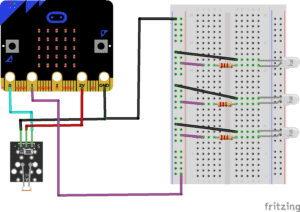
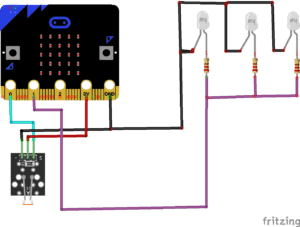
Here is how each components connect:
The LDR Module
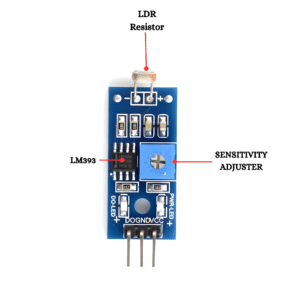
VCC connects to the 3V pin on the Micro:bit.
GND connects to the GND pin on the Micro:bit.
OUT connects to the Pin 0 on the Micro:bit.
The LEDs
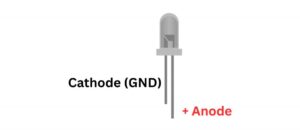
When it gets dark, all 3 LEDs will turn ON together from Pin 1.
For each of the 3 LEDs:
Identify the long leg (+) and short leg (–).
Connect the long leg (+) to one end of a 220Ω resistor.
Connect the other end of the resistor to Pin P1 on the micro:bit.
Connect the short leg (–) directly to GND on the micro:bit.
Note: During the daytime, bright sunlight shines on the light sensor, and the Micro:bit can tell that it is bright outside. Because it knows there is enough light, it keeps the street lights turned OFF, saving energy just like real street lights do. When nighttime, arrives and it becomes dark, the sensor notices the change right away. The micro:bit then understands that it’s time to help, and the street lights turn ON, lighting up the area to keep everyone safe.
The Project Code
Follow these steps carefully to open and explore the project in Microsoft MakeCode for Micro:bit:
When you open the link, you will see a few colorful blocks that makes the project.
Next, click Edit Code tab to be directed to the MakeCode editor
Uploading the Code
Plug in your Micro:bit to your computer using a USB cable, then follow the steps in the video to upload your code and bring your project to life!
Understand the Code
| Code Block | What It Does |
|---|---|
set lightLevel to 0 | Creates a variable called lightLevel and sets its starting value to 0. This variable stores the light sensor reading. |
forever | Repeats all the blocks inside continuously so the light level is monitored all the time. |
set lightLevel to analog read pin P0 | Reads the light sensor (LDR) value from pin P0 and saves it in the lightLevel variable. |
if lightLevel < 500 then | Checks if it is dark (sensor value below 500). |
digital write pin P1 to 1 | Turns ON the LED(s) connected to pin P1 to light up the area. |
else | Runs when it is bright enough (sensor value 500 or higher). |
digital write pin P1 to 0 | Turns OFF the LED(s) connected to pin P1. |
Troubleshooting the Code
LEDs don’t turn ON at night?
Make sure all LED long legs (+) are connected to Pin P1 through 220Ω resistors.
Ensure the short legs (–) are connected to GND.
Micro:bit is not reading the LDR module?
Check that VCC → 3V, GND → GND, OUT → P0.
Make sure the LDR module is powered.
LEDs are always ON?
Check the threshold in the
ifstatement (lightLevel < 500). Adjust this value depending on how bright your room is.
What You Have Learned
- How light sensors work
- How to automate lighting
- How one output pin can control multiple devices
- How smart street lights save energy
Extra Challenge
Add a second row of LEDs for double the street lights. Make them turn on and off at the same time.
Make a “dimmer effect”: the LEDs glow brighter when it’s darker and dimmer when it’s slightly lit.
Display the light level on the Micro:bit LED screen