
Learning Overview
In this project, learners explore how smart systems save energy and improve community safety using Arduino and sensors. They program street lights to turn ON at night and OFF during the day, just like real lights in towns and cities. We have included extra challenges that encourage learners to experiment with sensor sensitivity and timing, making learning fun and hands-on. Through this experience, learners build problem-solving skills, creativity, and environmental responsibility while discovering how automation and smart technology reduce energy waste and support sustainable, smart communities.
What You will Need
| Item | Purpose |
|---|---|
| Arduino Uno R4 WiFi | The main controller that reads the LDR module and controls the street light |
| Breadboard | Used to connect components easily without soldering |
| LED | Represents the street light in the project |
| LDR Module | Detects light and darkness to determine day and night |
| 220Ω Resistor | Protects the LED from excess current |
| Jumper Wires | Connect all components together |
| USB Cable | Powers the Arduino and uploads the program |
Understand the Circuit
Here is how each components connect:
LDR Module
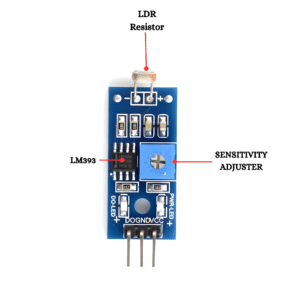
- VCC → connects to the 5V on the Arduino
GND → connects to the GND on the Arduino
AO (Analog Output) → connects to the analog pin A0 on Arduino
The 3 LEDs
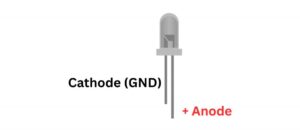
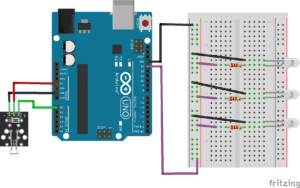
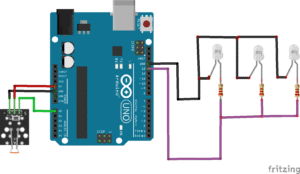
When it gets dark, all 3 LEDs will turn ON together from pin 13.
For each of the 3 LEDs:
Identify the long leg (+) and short leg (–) of LEDs.
Connect the long leg (+) to one end of a 220Ω resistor.
Connect the other end of the resistor to Pin 13 on the Arduino.
Connect the short leg (–) directly to GND on the Arduino
Note: During the daytime, bright sunlight shines on the light sensor, and the Arduino can tell that it is bright outside. Because it knows there is enough light, it keeps the street lights turned OFF, saving energy just like real street lights do. When nighttime, arrives and it becomes dark, the sensor notices the change right away. The Arduino then understands that it’s time to help, and the street lights turn ON, lighting up the area to keep everyone safe.
The Project Code
Open the Arduino IDE on your computer and type this code:
// Pin definitions
const int ldrPin = A0; // LDR module analog output
const int ledPin = 13; // All street light LEDs connected here
// Light threshold (adjust if needed)
int threshold = 500;
void setup() {
pinMode(ledPin, OUTPUT); // Set LED pin as output
Serial.begin(9600); // For monitoring light values
}
void loop() {
int lightValue = analogRead(ldrPin); // Read light level
Serial.print("Light Value: ");
Serial.println(lightValue);
// If it is dark, turn ON the street lights
if (lightValue < threshold) {
digitalWrite(ledPin, HIGH);
}
// If it is bright, turn OFF the street lights
else {
digitalWrite(ledPin, LOW);
}
delay(500); // Small delay for stability
}
Upload the Code
- Connect your Arduino Uno to your computer using the USB cable
- In the Arduino IDE, go to:
- Tools → Board → Arduino Uno
- Tools → Port → (Select your Arduino port)
- Click the Upload button (the right arrow icon).
- Watch your project come to life!
Understand the Code
| Code | What It Does |
|---|---|
ldrPin = A0 | Tells Arduino where the LDR is connected |
ledPin = 13 | Sets pin 13 as the street light |
threshold | Decides when it is dark or bright |
setup() | Runs once and prepares the system |
analogRead() | Reads light level from the LDR |
if (lightValue < threshold) | Checks if it is dark |
digitalWrite(HIGH) | Turns ON the street light |
digitalWrite(LOW) | Turns OFF the street light |
Troubleshooting the code
LED does not turn ON
Check LED direction (long leg must be positive)
Confirm resistor is connected correctly
LED always ON
Adjust the
thresholdvalueCheck LDR wiring
No values in Serial Monitor
Make sure baud rate is set to 9600
Confirm A0 connection
What You Have Learned
How smart street lights work in real cities
How sensors collect data from the environment
How Arduino makes decisions using
ifstatementsHow technology saves electricity and protects the environment
Basic electronics, coding, and problem-solving skills
Extra Challenge!
Add more LEDs to represent multiple street lights
Make lights fade ON slowly using PWM
Add a button for manual override
Use WiFi to turn the street light ON/OFF from a phone
Build a mini road model using cardboard