
Learning Overview
In this project, learners explore how smart homes use technology to improve comfort and save energy using a Micro:bit and temperature sensors. They monitor room conditions and control devices like fans or air conditioners, connecting coding, robotics, and electronics to real-life environments. We have included extra challenges that encourage learners to experiment with different settings, making learning fun and interactive. Through this hands-on experience, learners develop creativity, problem-solving skills, and decision-making abilities. The project also introduces AI ideas, showing how smart systems can learn temperature patterns, predict comfort needs, and optimize energy use efficiently.
What You will Need
| Item | Purpose |
|---|---|
| Micro:bit | The brain of your smart home system. |
| DHT11 Sensor | Measures the temperature and sends data to the micro:bit. |
| 3V Relay Module | Acts as a switch that turns the fan or air conditioner ON/OFF safely. |
| Fan or Air Conditioner | Provides cooling when the temperature gets high. |
| Red LED | Lights up when the temperature is too high. |
| Green LED | Lights up when the temperature is normal. |
| Jumper Wires | Used to connect all components. |
| Breadboard (optional) | Helps organize and connect components neatly. |
| USB Cable | For connecting the micro:bit to your computer. |
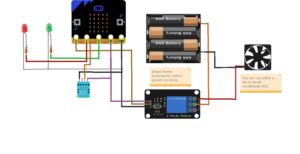
Understand the Circuit
Let’s look at how each part connects:
DHT11 Sensor
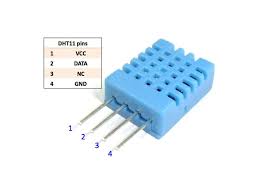
- VCC → connects to 3V on Microbit
- GND → connects to GND on Microbit
- Data → connects to Pin 8 on Microbit
Red LED

- Long leg → connects to Pin 1 on Microbit
- Short leg → connects to GND on Microbit
Green LED
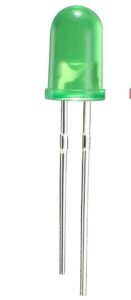
Long leg → connects to Pin 2 on Microbit
Short leg → connects to GND on Microbit
3V Relay Module
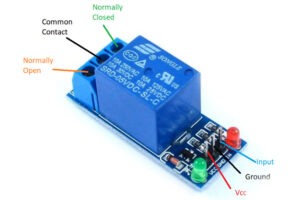
- VCC → connects to 3V on Microbit
- GND → connects to GND on Microbit
- IN → connects to Pin 0 on Microbit
On the relay output side (the high-current side):
- The COM terminal connects to the positive terminal of the external battery.
- The NO (Normally Open) terminal connects to the positive wire of the fan/AC.
- The fan’s negative wire connects directly to the negative terminal of the external battery.
AC/ Fan
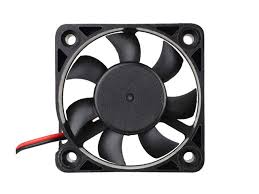
- Positive (+) terminal → connect to the NO (Normally Open) pin on the relay module
- Negative (–) terminal → connect to negative (–) terminal of external the battery
The Project Code
Follow these steps carefully to open and explore the project in Microsoft MakeCode for Micro:bit:
When you open the link, you will see a few colorful blocks that makes the project.
Next, click Edit Code tab to be directed to the MakeCode editor
Uploading the Code
Plug in your Micro:bit to your computer using a USB cable, then follow the steps in the video to upload your code and bring your project to life!
Understand the Code
| Code Block | What It Does |
|---|---|
set temperature to 0 | Creates a variable called temperature and sets its starting value to 0. |
forever | Repeats all the blocks inside continuously to monitor temperature all the time. |
set temperature to temperature (°C) | Reads the built-in temperature sensor on the micro:bit and stores the value in the temperature variable. |
show number temperature | Displays the current temperature value on the LED screen. |
pause 1000 ms | Waits 1 second before checking the temperature condition. |
if temperature > 30 then | Checks if the temperature is higher than 30°C, meaning it is too hot. |
digital write pin P0 to 1 | Turns ON the fan or relay connected to pin P0. |
digital write pin P1 to 1 | Turns ON the red LED to show high temperature. |
digital write pin P2 to 0 | Turns OFF the green LED. |
else | Runs when the temperature is 30°C or below (normal temperature). |
digital write pin P0 to 0 | Turns OFF the fan or relay. |
digital write pin P1 to 0 | Turns OFF the red LED. |
digital write pin P2 to 1 | Turns ON the green LED to show safe temperature. |
pause 2000 ms | Waits 2 seconds before repeating the temperature check. |
Troubleshooting the Code
If the fan doesn’t start, check the relay’s input pin connection.
If both LEDs are OFF, make sure the logic and pin assignments are correct.
Adjust the temperature threshold (20°C - 30°C) to suit your environment.
What You Have Learned
- How to use a DHT11 sensor with the BBC micro:bit.
- How to control a relay module to switch ON/OFF real devices.
- How to automate temperature control in a smart home.
- How to code logic for real-world automation.
Extra Challenge
- Try adding a buzzer to beep when the temperature gets too high!
- Display the temperature reading on the micro:bit LED screen.
- Replace the Relay module with L298N Motor Driver and control the speed of the fan or AC
AI Extension Ideas
Use either Micro:bit's CreateAI or Edge Impulse to build, train, and deploy machine learning (ML) models to make the smart home system think ahead. The AI can learn from temperature changes and predict what will happen next.
For Example:
Comfort Predictor: The Micro:bit observes how the room temperature changes during the day and predicts when it will become too hot or too cold.
Smart Fan Helper: Before the room gets too warm, the AI turns on the fan or AC automatically.
Happy Home Lights: LEDs change color to show the AI’s prediction red for “getting hot,” and green for “just right.”
Fun Test Game: Students guess the temperature change and see if the AI was right.