
Learning Overview
In this project, learners explore how technology can improve cleanliness and waste management using sensors and the Arduino Uno R4 WiFi. They build a smart dustbin that opens automatically and tracks usage, learning key ideas in automation and smart city systems. We have included extra challenges that encourage learners to experiment with sensor placement and features, making learning fun and hands-on. Through this experience, learners develop creativity, problem-solving skills, and environmental responsibility while discovering how smart technology promotes hygiene, convenience, and cleaner homes and schools.
What You will Need
| Item | Purpose |
|---|---|
| Arduino Uno R4 WiFi | Controls the smart dustbin system |
| Breadboard | Used to connect components easily |
| 2 Ultrasonic Sensor | One detects people, one checks bin level |
| Servo Motor (SG90) | Opens and closes the dustbin lid |
| Green LED | Indicates bin is NOT full |
| Red LED | Indicates bin is FULL |
| Buzzer (Active) | Alerts when bin is full |
| 220Ω Resistors (2) | Protect the LEDs |
| Jumper Wires | Connect all components |
| USB Cable | Power and programming |
Understand the Circuit
Here’s how different components connect:
First Ultrasonic Sensor
This sensor detects a person approaching the dustbin and opens the lid
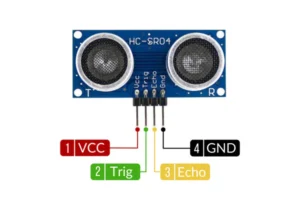
VCC → connects to the 5V on the Arduino
GND → connects to the GND on the Arduino
TRIG → connects to the digital Pin 2 on the Arduino
ECHO → connects to the digital Pin 3 on the Arduino
Second Ultrasonic Sensor
This sensor is placed inside the dustbin, facing downwards and detects when the bin is full.
VCC → connects to the 5V on the Arduino
GND → connects to the GND on the Arduino
TRIG → connects to the digital Pin 4 on the Arduino
ECHO → connects to the digital Pin 5 on the Arduino
The Servo Motor
Servo motor open and close the Dustbin lid
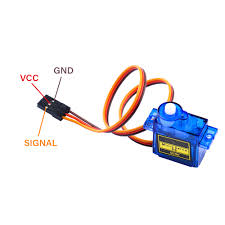
Red wire of servo → connects to the 5V on the Arduino
Brown/Black wire of the servo → connects to the GND on the Arduino
Yellow/Orange wire (signal) of the servo → connects to the digital Pin 9 on the Arduino
Green LED
Indicates Bin Not Full
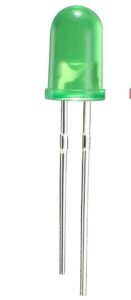
Connect the long leg (positive/anode) of the LED to one end of the 220Ω resistor
Connect the other end of the resistor to digital pin 7 on the Arduino.
Connect the short leg (negative/cathode) of the LED to GND.
Red LED
Indicates the When the Bin is full

Connect the long leg (positive/anode) of the LED to one end of the 220Ω resistor
Connect the other end of the resistor to digital pin 8 on the Arduino.
Connect the short leg (negative/cathode) of the LED to GND.
The Buzzer
Sound the Alarm when the bin is full

Connect the positive (+) pin of the buzzer to digital pin 6 on the Arduino.
Connect the negative (–) pin of the buzzer to GND on the Arduino
The Project Code
Open the Arduino IDE on your computer and type this code:
#include
Servo lidServo;
// Pins
int trigPerson = 2;
int echoPerson = 3;
int trigBin = 4;
int echoBin = 5;
int servoPin = 9;
int greenLED = 7;
int redLED = 8;
int buzzer = 6;
long duration;
int distancePerson;
int distanceBin;
void setup() {
pinMode(trigPerson, OUTPUT);
pinMode(echoPerson, INPUT);
pinMode(trigBin, OUTPUT);
pinMode(echoBin, INPUT);
pinMode(greenLED, OUTPUT);
pinMode(redLED, OUTPUT);
pinMode(buzzer, OUTPUT);
lidServo.attach(servoPin);
lidServo.write(0); // Lid closed
}
void loop() {
// Person detection
distancePerson = getDistance(trigPerson, echoPerson);
if (distancePerson < 20) {
lidServo.write(90); // Open lid
delay(2000);
lidServo.write(0); // Close lid
}
// Bin level detection
distanceBin = getDistance(trigBin, echoBin);
if (distanceBin < 10) { // Bin full
digitalWrite(redLED, HIGH);
digitalWrite(greenLED, LOW);
digitalWrite(buzzer, HIGH);
} else { // Bin not full
digitalWrite(greenLED, HIGH);
digitalWrite(redLED, LOW);
digitalWrite(buzzer, LOW);
}
delay(500);
}
int getDistance(int trigPin, int echoPin) {
digitalWrite(trigPin, LOW);
delayMicroseconds(2);
digitalWrite(trigPin, HIGH);
delayMicroseconds(10);
digitalWrite(trigPin, LOW);
duration = pulseIn(echoPin, HIGH);
return duration * 0.034 / 2;
}
Uploading the Code
- Connect your Arduino Uno to your computer using the USB cable
- In the Arduino IDE, go to:
- Tools → Board → Arduino Uno
- Tools → Port → (Select your Arduino port)
- Click the Upload button (the right arrow icon).
- Watch your project come to life!
Understand the Code
| Code | What It Does |
|---|---|
| Servo library | Controls the dustbin lid |
| First ultrasonic sensor | Detects when someone approaches |
| Second ultrasonic sensor | Measures trash level |
| Distance conditions | Decide lid movement and alerts |
| Servo angles | Open (90°) and close (0°) |
| LEDs & buzzer | Show bin status |
Troubleshooting the code
Servo not moving
Check power connections
Confirm correct servo pin
Lid opens randomly
Adjust distance threshold of the first ultrasonic sensor
Bin always shows full
Move internal sensor higher
Increase
distanceBinthreshold
Buzzer too loud
Reduce buzzer active time
What You Have Learned
How automatic systems reduce human contact
How sensors measure distance
How servo motors create movement
How smart bins support hygiene and recycling
Real-world smart city and environmental concepts
Extra Challenge
Add an LCD screen showing “Bin Full”
Count how many times the bin is used
Send bin status to a phone using WiFi
Add color-coded bins (plastic, paper, metal)
Build a real bin model using cardboard or plastic