
Learning Overview
In this project, learners explore how home security systems work using Arduino to keep people and property safe. They build a mini home security alarm that detects movement with a PIR sensor and triggers alerts using buzzers and LEDs. We have included extra challenges that encourage learners to experiment with alert types and sensitivity, making learning fun and hands-on. Through this experience, learners develop problem-solving skills, safety awareness, and confidence while discovering how sensors, logic, and alerts power real-world systems like burglar alarms, smart lights, and modern smart homes.
What You will Need
| Item | Purpose |
|---|---|
| Arduino Uno R4 WiFi | Controls the security alarm system |
| Breadboard | Used to connect components |
| PIR Motion Sensor | Detects movement |
| Buzzer (Active) | Sounds the alarm |
| Red LED | Visual alert when motion is detected |
| 220Ω Resistor | Protects the LED |
| Jumper Wires | Connect all components |
| USB Cable | Powers and programs the Arduino |
Understand the Circuit
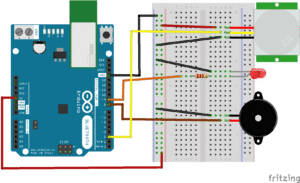
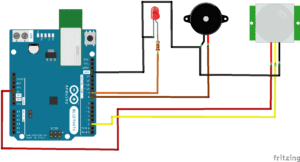
Here’s how different components connect:
PIR Motion Sensor
Sends a HIGH signal when movement is detected.
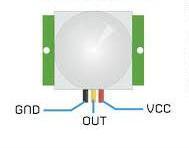
- VCC → connects to the 5V on the Arduino
GND → connects to the GND on the Arduino
OUT → connects to the digital Pin 2 on the Arduino.
Red LED

Connect the long leg (positive/anode) of the LED to one end of the 220Ω resistor
Connect the other end of the resistor to digital pin 9 on the Arduino.
Connect the short leg (negative/cathode) of the LED to GND.
The Buzzer (Sound Alarm)
When motion is detected, the buzzer will sound Alarm

Connect the positive (+) pin of the buzzer to digital pin 8 on the Arduino.
Connect the negative (–) pin of the buzzer to GND on the Arduino
The Project Code
Open the Arduino IDE on your computer and type this code:
int pirPin = 2;
int ledPin = 9;
int buzzerPin = 8;
void setup() {
pinMode(pirPin, INPUT);
pinMode(ledPin, OUTPUT);
pinMode(buzzerPin, OUTPUT);
}
void loop() {
int motionDetected = digitalRead(pirPin);
if (motionDetected == HIGH) {
digitalWrite(ledPin, HIGH);
digitalWrite(buzzerPin, HIGH);
delay(3000); // Alarm duration
} else {
digitalWrite(ledPin, LOW);
digitalWrite(buzzerPin, LOW);
}
}
Uploading the Code
- Connect your Arduino Uno to your computer using the USB cable
- In the Arduino IDE, go to:
- Tools → Board → Arduino Uno
- Tools → Port → (Select your Arduino port)
- Click the Upload button (the right arrow icon).
- Watch your project come to life!
Understand the Code
| Code | What It Does |
|---|---|
pirPin | Reads movement from the PIR sensor |
ledPin | Controls the warning LED |
buzzerPin | Controls the alarm sound |
digitalRead() | Checks for movement |
if (motionDetected) | Triggers alarm when motion is detected |
delay(3000) | Keeps alarm active for 3 seconds |
Troubleshooting the code
Alarm always ON
Wait 30–60 seconds for PIR sensor calibration
Reduce sensor sensitivity
No alarm when moving
Check PIR OUT pin connection
Ensure correct power supply
LED not lighting
Check LED direction and resistor
Buzzer too loud
Reduce alarm duration
What You Have Learned
How motion sensors detect people
How alarm systems work
How Arduino uses conditions to make decisions
The importance of home safety
Basic electronics and coding skills
Extra Challenge
Add a delay before alarm activates
Add a button to arm/disarm the system
Add multiple motion sensors
Use WiFi to send alerts
Create a cardboard house model