
Learning Overview
In this project, learners explore carbon footprints and air quality using the Micro:bit and Grove SCD30 CO₂ sensor. They measure carbon dioxide levels in the air and display real-time readings on the Micro:bit screen. We have included extra challenges that encourage learners to experiment with different locations and times, making learning fun and interactive. Through this hands-on experience, learners discover how sensors detect environmental conditions and how code can turn data into meaningful information. They also develop problem-solving skills, data awareness, and environmental responsibility while learning how technology can help reduce carbon footprints in homes, schools, and communities.
What You will Need
| Item | Purpose |
|---|---|
| BBC micro:bit | Acts as the brain, reads the sensor, and displays CO₂ levels |
| USB cable | Powers the micro:bit and allows programming |
| Grove SCD30 CO₂ Sensor | Measures carbon dioxide levels |
| Jumper wires | Connect Micro:bit to the sensor |
Understand the Circuit
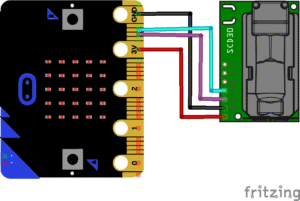
Let’s look at how each part connects:
Grove SCD30 CO2 Sensor
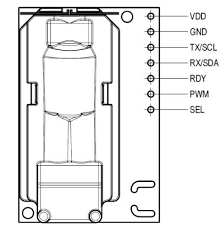
VCC (VDD) → connects to 3V on Microbit
GND → connects to GND on Microbit
SDA → connects to Pin 20 on Microbit
SCL → connects to Pin 19 on Microbit
Note: The Grove SCD30 CO₂ sensor talks to the Micro:bit using a special language called I²C, which is different from the simple on/off signals of pins like P0, P1, and P2. I²C needs two special wires to work: one for data (SDA) and one for timing (SCL). On the Micro:bit, these are already set up for you on Pin P20 for SDA and Pin P19 for SCL. You can’t just use P0, P1, or P2, because those pins don’t speak the I²C language.
The Project Code
Follow these steps carefully to open and explore the project in Microsoft MakeCode for Micro:bit:
When you open the link, you will see a few colorful blocks that makes the project.
Next, click Edit Code tab to be directed to the MakeCode editor
Uploading the Code
Plug in your Micro:bit to your computer using a USB cable, then follow the steps in the video to upload your code and bring your project to life!
https://youtu.be/dqukl_y1X7M?si=hQ3aUWHM_N0S32hc
Understand the code
| Code Block | What It Does |
|---|---|
forever | Repeats all the blocks inside continuously so the CO₂ level is checked again and again. |
set co2 to read CO2 from SCD30 sensor | Reads the current CO₂ concentration (ppm) from the Grove SCD30 sensor and stores the value in a variable called co2. |
show number co2 | Displays the CO₂ value on the LED matrix of the micro:bit. |
pause 2000 ms | Waits 2 seconds before taking the next CO₂ reading. |
Troubleshooting the Code
- CO₂ value not showing on the screen?
Make sure the program is downloaded successfully to the micro:bit and the LED display is not being used by another block at the same time. - Always shows 0 or no change?
Check that the SCD30 sensor is properly connected to the correct Grove/I²C port and that the cable is firmly plugged in. - Unrealistic or jumping CO₂ values?
Give the sensor time to warm up (about 5–10 seconds) before trusting the readings, and keep it away from your breath or sudden air movement. - Micro:bit freezes or restarts?
Ensure the sensor is powered correctly through the Grove connector and not drawing power from incorrect pins. - Readings update too fast or too slow?
Adjust the pause block (e.g., 2000 ms → 5000 ms) to control how often the sensor is read. - Nothing happens at all?
Confirm the Grove extension is added in MakeCode and that SCD30 blocks are available in the toolbox.
What You Have Learned
- How to connect and use a CO₂ sensor with micro:bit
- How to use variables and loops to continuously update readings
- Awareness of indoor air quality and its importance
How to display live environmental data on the Micro:bit.
Extra Challenge
Create Air Pollution Traffic Light by adding three LEDs and set green for clean air, yellow for medium air, and red for polluted air.
Show a happy face, neutral face, or sad face on the screen based on the CO₂ value.
Connect a buzzer and make it turn on when CO₂ goes above your danger level.
Connect a fan or motor and make it turn on automatically when CO₂ is high.
Measure CO₂ in an empty room, a full room, and after opening windows, then record the values.