
Learning Overview
In this project, learners are introduced to the BBC Micro:bit through a fun blinking light activity. They write simple programs to control Light Emitting Diode (LEDs), and discovering how clear instructions guide computer’s actions. We have included extra challenges that encourage learners to experiment with different light patterns, making learning playful and interactive. Through this hands-on experience, learners develop creativity, problem-solving skills, and confidence while connecting coding and robotics to real-world applications like toys, electronics, and wearable devices. The project also sparks imagination with AI ideas, showing how smart systems can respond, adapt, and make decisions.
What You will Need
| Item | Purpose |
|---|---|
| Micro:bit (V2 or V1) | Main microcontroller board |
| Micro USB cable | Connects Micro:bit to your computer |
| Breadboard (optional) | For building the circuit |
| LED | Lights up to show output (any color works) |
| 220Ω resistor | Protects the LED from too much current |
| Jumper wires | For making electrical connections |
| Alligator clips (optional) | Easy connections without a breadboard |
Understand the Circuit
The Micro:bit has built-in LED lights on its front, but for this project, we will use an external LED to learn about circuits.
An LED has two legs:

Long leg (Anode) → Connects to P0 (Pin 0) on the Micro:bit
Short leg (Cathode) → Connects to GND (Ground) on the Micro:bit
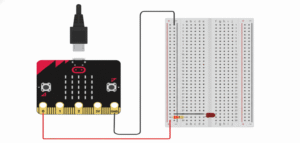
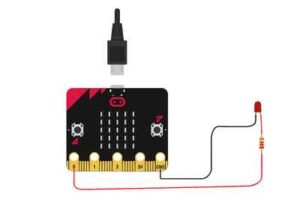
Circuit Connections
Place the LED on the breadboard.
Connect the short leg (–) of the LED to GND on the Micro:bit.
Connect the long leg (+) of the LED to one end of the 220Ω resistor.
Connect the other end of the resistor to Pin 0 on the Micro:bit.
Tip: If you don’t have a breadboard, you can connect wires directly using alligator clips.
The Project Code
Follow these steps carefully to open and explore the project in Microsoft MakeCode for Micro:bit:
When you open the link, you will see a few colorful blocks that make the LED blink.
Next, click Edit Code tab to be directed to the MakeCode editor
Uploading the Code
Plug in your Micro:bit to your computer using a USB cable, then follow the steps in the video to upload your code and bring your project to life!
Understand the Code
| Code Block | What It does |
|---|---|
| forever | This block keeps repeating the instructions inside it. |
| digital write pin P0 to 1 | Turns the LED ON by sending power through pin P0. |
| pause (1000) | Waits 1 second (1000 milliseconds) before doing the next action. |
| digital write pin P0 to 0 | Turns the LED OFF by stopping the power from pin P0. |
| pause (1000) | Waits another second before starting again. |
Troubleshooting the code
If the LED doesn’t blink:
Check if the LED is connected the right way (long leg = P0, short leg = GND).
Ensure the resistor is connected between P0 and the LED.
Make sure your Micro:bit is powered and the program uploaded correctly.
Try using another pin (like P1 or P2) and update the code accordingly.
What You Have Learned
- How to connect and control an LED using the Micro:bit pins
- The difference between digital ON (1) and OFF (0) signals in MakeCode
- How to use the forever block to make your program run continuously
- How timing works with the pause block (in milliseconds)
- How to use digital write pin blocks to turn components ON and OFF
Extra Challenge
Try these fun ideas:
Double Blink: Make the LED blink twice quickly, then pause.
Multiple LEDs: Add more LEDs on P1 and P2, make them blink alternately!
Sound Sync: If you have Micro:bit V2, add beeps using the built-in speaker while the LED blinks.
AI Extension Ideas
Use either Micro:bit's CreateAI or Edge Impulse to build, train, and deploy machine learning (ML) models to make the blinking lights more intelligent and playful. With CreateAI, the Micro:bit can learn from simple patterns and predict what should happen next.
For example:
Pattern Predictor: The Micro:bit checks how students press a button to change LED blinking patterns. After a few tries, it can guess the next pattern and blink the lights automatically.
Fun Game: Students can play a “guess the blink” game where the AI tries to repeat the pattern they create, making learning interactive and playful.