
Learning Overview
In this project, learners explore carbon footprint and air quality using the Calliope Mini and a carbon dioxide (CO₂) sensor to measure real environmental data. They collect CO₂ readings from classrooms, homes, or outdoor spaces and discover how human activities affect air quality. We have included extra challenges that encourage learners to compare different locations, times, and activities, making learning engaging and meaningful. Through this hands-on experience, learners build problem-solving skills, data awareness, and environmental responsibility, while learning how robotics, coding, science, and smart technologies can support healthier and more climate-friendly communities
What You will Need
| Item | Purpose |
|---|---|
| Calliope Mini V3 | Main microcontroller that reads CO₂ data |
| Official Calliope SCD40 CO₂ Sensor | Measures CO₂ levels |
| Grove Cable | Connects the sensor to the Calliope Mini |
| USB Cable | Powers and programs the Calliope Mini |
| Jumper Wires (optional) | For additional extensions or indicators |
Understand the Circuit
Wiring this project is very easy because the official Calliope CO₂ sensor uses a Grove I²C connector, which means everything is plug-and-play.
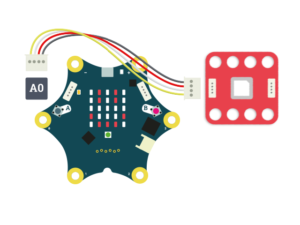
The connector only fits one way, so you cannot plug it in incorrectly.
Take the Grove cable that comes with the CO₂ sensor.
Plug one end of the Grove cable into the SCD40 CO₂ sensor.
Plug the other end of the Grove cable into the I²C Grove port on the Calliope Mini.
That’s it , the connection is complete.
There are no extra jumper wires, no resistors, and no complicated wiring. Once everything is plugged in, the Calliope Mini will continuously read real-time CO₂ levels and show the air-quality status directly on its LED display.
The Project Code
Follow these steps carefully to open and explore the project in MakeCode for Calliope Mini:
When you open the link, you will see a few colorful blocks that makes the project.
Next, click Edit Code tab to be directed to the MakeCode editor
Uploading the Code
Plug in your Calliope Mini to your computer using a USB cable, then follow the steps in the video to upload your code and bring your project to life!
Understand the Code
| Code Block | What It Does |
|---|---|
set co2 to 0 | Creates a variable called co2 and sets its starting value to 0. This variable will store the CO₂ reading from the sensor. |
pause 5000 ms | Waits 5 seconds to give the CO₂ sensor time to power on and get ready before taking readings. |
forever | Repeats all the blocks inside it continuously, so the air quality is checked again and again. |
set co2 to get CO2 from SCD40 sensor | Reads the current CO₂ level from the SCD40 sensor and saves the value (in ppm) into the co2 variable. |
show string "CO2:" + co2 | Displays the text “CO2:” followed by the measured CO₂ value on the LED screen. |
if co2 < 600 then | Checks whether the CO₂ level is below 600 ppm, which means the air quality is good. |
show happy icon | Shows a happy face to indicate clean and healthy air. |
else | Runs when the CO₂ value is 600 ppm or higher. |
show sad icon | Shows a sad face to warn that the air is polluted or not fresh. |
pause 2000 ms | Waits 2 seconds before taking the next CO₂ reading. |
Troubleshooting the code
- IMPORTANT: Make sure the SCD40 extension is added in MakeCode— go to Extensions → search “SCD40” → Add. Without it,
SCD40.get_co2()will show errors like “cannot find SCD40.” Sensor not detected: Check the Grove cable is firmly connected to the I²C port.
Icons not changing: CO₂ levels may be stable; try breathing near the sensor for a moment (CO₂ rises).
Scrolling text too fast: Increase pause time from 2000ms to 3000ms.
- Extension missing: Go to Extensions → search “SCD30” or paste the GitHub URL to add it again.
What You Have Learned
You learned how environmental sensors measure CO₂, temperature, and humidity.
You discovered how microcontrollers communicate using the I²C protocol.
You practiced wiring the sensor to the Calliope Mini using a simple Grove connection.
You wrote code that reads real-time environmental data.
You understood how CO₂ levels relate to our carbon footprint.
You explored how digital tools can monitor and improve indoor air quality.
You learned why tracking CO₂ is important for health, safety, and climate action.
Extra Challenge
Here are fun ways to make your Carbon Footprint Tracker even more exciting:
Add a buzzer that beeps when CO₂ gets too high.
Connect an LED traffic-light module (green/yellow/red) to make a CO₂ “Air Quality Stoplight.”
Create a data logging system that saves CO₂ levels every minute.
Attach a small fan that turns ON automatically when CO₂ is high.
Build a cardboard “Air Quality Station” with your own graphics and labels.
AI Extension Ideas
Use Edge Impulse to build, train, and deploy machine learning (ML) to models make their air quality project smart and impactful. The AI learns from CO₂ levels and recognizes what clean air and polluted air look like.
For example:
- Air Quality Predictor: The Calliope Mini observes how CO₂ changes in different places and learns when air is fresh or getting unhealthy.
- Early Helper Action: When the AI predicts poor air quality, it can turn on a warning light or show a symbol to remind students to open windows or go outside.
- Fun Test Game: Students test the AI by visiting different rooms and seeing if it guesses the air quality correctly.