
Learning Overview
In this project, learners explore smart access and automation systems using the Calliope Mini. They use an InfraRed (IR) sensor to detect movement and program a servo motor to automatically open and close a classroom door. We have included extra challenges that encourage learners to adjust detection distance, opening speed, and door timing, making learning fun and interactive. Through this hands-on experience, learners develop logical thinking, creativity, and responsible design skills while discovering how coding, robotics, and smart systems improve convenience, safety, and accessibility in everyday environments.
What You Will Need
| Item | Purpose |
|---|---|
| Calliope Mini V3 | The microcontroller that reads the sensor and controls the servo |
| Micro Servo | Opens and closes the “door” |
| IR Sensor | Detects when someone approaches the doorway |
| 3V Battery Pack for Calliope | Powers the Calliope Mini safely |
| External 5V Battery Pack | Provides safe power for the servo (higher current needed) |
| Jumper Wires | Connect all components together |
| Common Ground Wire | Shares ground between Calliope and servo power for correct signals |
Understand the Circuit
InfraRed Sensor
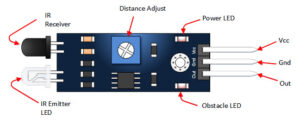
IR Sensor Connections
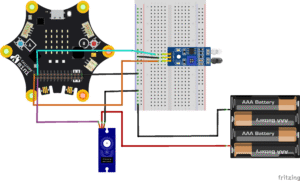
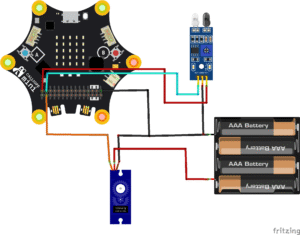
IR VCC → connect to Calliope VCC pin
IR GND → connect to the Calliope GND pin
IR OUT → connect to Calliope Pin 1
Servo Motor
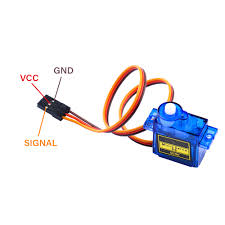
Servo Motor Connections
Servo VCC (red) → connect to 5V battery pack (+)
Servo GND (brown/black) → connect to 5V battery (–)
IMPORTANT: Connect the same ground line to Calliope GND.
Servo Signal (yellow/white) → connect to Calliope Pin 0
Note: All grounds (GND) must be linked together so the Calliope can control the servo correctly
The Project Code
Follow these steps carefully to open and explore the project in MakeCode for Calliope Mini:
When you open the link, you will see a few colorful blocks that makes the project.
Next, click Edit Code tab to be directed to the MakeCode editor
Uploading The Code
Plug in your Calliope Mini to your computer using a USB cable, then follow the steps in the video to upload your code and bring your project to life!
Understand The Code
| Code | What it Does |
|---|---|
| set servoPin to P0 | Sets pin P0 as the pin used to control the servo motor. |
| set pirPin to P1 | Sets pin P1 as the pin used to read the PIR motion sensor. |
| forever | Repeats the blocks inside continuously so the system always checks for movement. |
| digital read pin P1 | Reads the PIR sensor to check if movement is detected. |
| if digital read pin P1 = 1 then | Checks if motion is detected by the PIR sensor. |
| set servo P0 angle to 90° | Turns the servo motor to open the door when motion is detected. |
| pause 500 ms | Waits for a short time while the door stays open. |
| set servo P0 angle to 0° | Moves the servo back to close the door after waiting. |
Troubleshooting the code
IMPORTANT: Ensure the servo extension is added in MakeCode (go toAdvanced → Extensions → Servo).
- Door not opening?
Ensure the servo motor signal wire is connected to P0 and that the servo has enough power (external power is recommended). - Door opens randomly?
Check the PIR sensor sensitivity and make sure it is not facing moving objects like curtains or people far away. - No movement detected?
Confirm the PIR sensor OUT pin is connected to P1 and allow the sensor a few seconds to warm up after powering on. - Servo moves the wrong way?
Adjust the servo angles (for example, change 90° to 60° or 120°) to match how the door is mounted. - Door closes too fast?
Increase the pause time (for example, from500 msto2000 ms) so the door stays open longer. - Nothing works at all?
Check that power, ground (GND), and signal wires are correctly connected and not loose.
What You Have Learned
How a PIR sensor can detect movement
How a servo motor can open and close a door automatically
How microcontrollers use sensor data to make decisions
How automation improves convenience and accessibility
How coding and robotics work together in real-life systems
Basics of sensors, actuators, and simple automation
Extra Challenge
Add a Reset Button using Pin P3
When pressed, it stops the door motor and resets the system to standby mode.Add an LED indicator strip
→ Red = Door is opening
→ Yellow = Motion detected, preparing to open
→ Green = Door closed / safeAdd a light sensor for smarter automation
The door only opens automatically when motion is detected and it’s dark enough or conditions require it.Create a classroom model with multiple doors
Test how several doors can operate automatically in different rooms.Add sound effects
Play a short chime or alert when motion is detected.Add a real-time timer
Logs how long the door remains open during each detection event.
AI Extension Ideas
Use Edge Impulse to build, train, and deploy machine learning (ML) model to make their automatic door system even smarter. The AI learns from movement patterns and predicts when someone is coming.
For example:
- Movement Predictor: The Calliope Mini observes when and where people usually approach the door and learns to open the door before someone reaches it.
- Smart Door Action: When the AI predicts someone is coming, it automatically opens the door faster. It can also ignore random movements (like pets or hanging curtains) so the door doesn’t open unnecessarily.
- Fun Test Game: Students can walk toward the door at different speeds or times, and see if the AI guesses correctly and opens the door at the right moment.