
Learning Overview
In this project, learners explore Arduino programming and basic electronics by creating a simple blinking light system. They write code to turn a Light Emitting Diode (LED) ON and OFF, discovering how software controls hardware. We have included extra challenges that allow learners to adjust timing and patterns, making learning fun and engaging. Through this hands-on experience, learners build programming logic, problem-solving skills, and confidence. By connecting the activity to everyday devices like indicators, toys, and alarms, learners see how technology works around them and realize they can create and control electronic systems, not just use them.
What You will Need
| Item | Purpose |
|---|---|
| Arduino Uno board | Acts as the main microcontroller for running the program |
| USB cable | Connects the Arduino to the computer for power and programming |
| Breadboard | Allows building and testing circuits without soldering |
| LED | Provides a visual output (light indicator) |
| 220Ω resistor | Limits current to protect the LED from damage |
| Jumper wires | Used to make electrical connections between components |
Understand the Circuit
An LED has two legs:
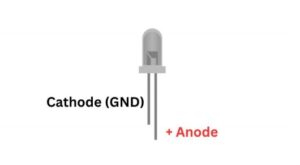
- Long leg (Anode) → Connects to pin 13 on the Arduino
- Short leg (Cathode) → Connects to ground (GND) on the Arduino
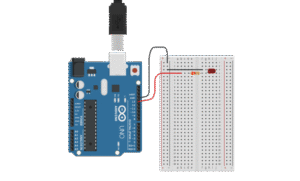
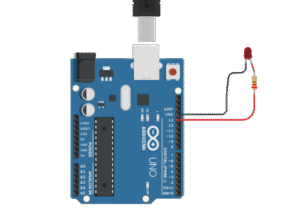
Circuit Connections
- Connect the short leg (–) of the LED to the GND pin on the Arduino using a jumper wire.
- Connect the long leg (+) of the LED to one end of the 220Ω resistor.
- Connect the other end of the resistor to digital pin 13 on the Arduino.
Tip: Pin 13 is special because the Arduino Uno already has a small built-in LED on it. You can test your code using either the built-in LED or an external LED.
The Project Code
Open the Arduino IDE on your computer and type this code:
// Blinking Light Example
// Turns the LED on and off repeatedly
void setup() {
// Set pin 13 as an OUTPUT pin
pinMode(13, OUTPUT);
}
void loop() {
digitalWrite(13, HIGH); // Turn the LED ON
delay(1000); // Wait 1 second (1000 milliseconds)
digitalWrite(13, LOW); // Turn the LED OFF
delay(1000); // Wait 1 second
}
Understand the Code
| Code | What it Does |
|---|---|
void setup() | Runs once when the Arduino starts. We use it to set up pin modes. |
pinMode(13, OUTPUT); | Tells Arduino that pin 13 will send electricity, not receive it. |
void loop() | Repeats forever — this is where your program runs continuously. |
digitalWrite(13, HIGH); | Turns the LED ON (HIGH means electricity flows). |
delay(1000); | Waits for 1 second before moving to the next command. |
digitalWrite(13, LOW); | Turns the LED OFF (LOW stops electricity). |
Another delay(1000); | Waits 1 second again before repeating. |
Fun Fact:
Changing the delay values changes how fast your LED blinks!
Try delay(200); for a faster blink or delay(2000); for a slower one.
Uploading the Code
- Connect your Arduino Uno to your computer using the USB cable.
- In the Arduino IDE, select:
- Tools → Board → Arduino Uno
- Tools → Port → (Choose your Arduino port)
- Click the Upload button (the right arrow icon).
- Watch your LED blink!
Troubleshooting the code
If the LED doesn’t blink:
- Check your connections — make sure the LED’s long leg is connected to the resistor and pin 13
- Make sure you selected the right board and port in the Arduino IDE.
- Try using the built-in LED (pin 13) by removing the external one.
What You Have Learned
- How to connect an LED to the Arduino Uno
- The difference between digital HIGH and LOW signals
- How to use the
setup()andloop()functions - How to control timing with the
delay()function
Extra Challenge
Try modifying the code:
- Make a “heartbeat” effect by changing the delay times:
digitalWrite(13, HIGH); delay(200); digitalWrite(13, LOW); delay(100); digitalWrite(13, HIGH); delay(200); digitalWrite(13, LOW); delay(1000); - Use different pins (like pin 7 or 8) — just remember to update the code!
- Add two LEDs blinking alternately (use pin 13 and pin 12).
Extension Ideas
- Combine LEDs of different colors to make a light show.
- Use a button to control when the LED blinks.
- Create a traffic light system with three LEDs (red, yellow, green).