
Learning Overview
In this project, learners explore how traffic light systems improve road safety using Arduino. They program red, yellow, and green LEDs to light up in the correct sequence and timing, just like real traffic signals. We have included extra challenges that encourage learners to experiment with timing and patterns, making learning fun and interactive. Through this hands-on experience, learners build logical thinking, sequencing, and problem-solving skills while discovering how simple code can control important public safety systems they see every day in their communities.
What You Will Need
| Item | Purpose |
|---|---|
| Arduino Uno board | Acts as the brain of the project and controls all components |
| USB cable | Connects the Arduino to the computer for power and programming |
| Breadboard | Allows you to build and test the circuit without soldering |
| Red LED | Displays the STOP signal |
| Yellow LED | Displays the READY signal |
| Green LED | Displays the GO signal |
| 220Ω resistors | Protect the LEDs from too much electric current |
| Jumper wires | Connect all components together on the breadboard |
Understanding the circuit
Traffic Light Connections
Here is how each LEDs connect:
Red LED

Connect the Red LED's long leg (+) of the LED to one end of the 220Ω resistor.
- Connect the other end of the resistor to Pin 13 on the Arduino
Connect the Red LED's short leg (–) of the LED to GND on the Arduino
Yellow LED
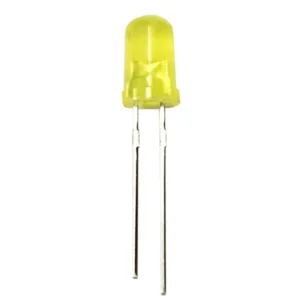
Connect the Red LED's long leg (+) of the LED to one end of the 220Ω resistor.
- Connect the other end of the resistor to Pin 12 on the Arduino
Connect the Red LED's short leg (–) of the LED to GND on the Arduino
Green LED
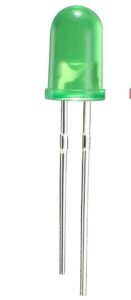
Connect the Red LED's long leg (+) of the LED to one end of the 220Ω resistor.
- Connect the other end of the resistor to Pin 11 on the Arduino
Connect the Red LED's short leg (–) of the LED to GND on the Arduino
Note: Remember, each LED must be connected through a 220Ω resistor before reaching the microcontroller. The resistor protects the LED by limiting the current, helping it stay bright and safe without burning out
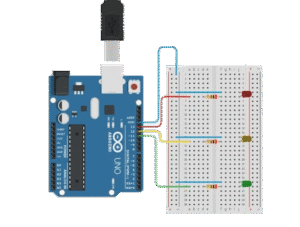
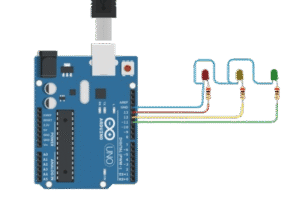
The Project Code
Open the Arduino IDE on your computer and type this code:
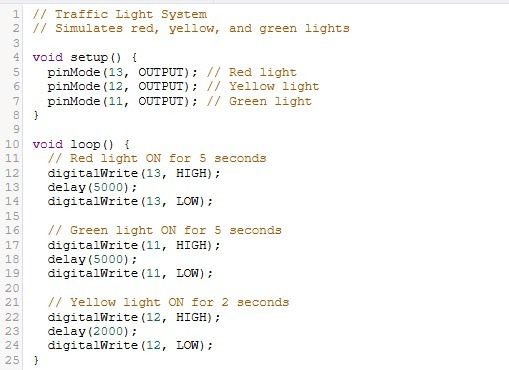
Understanding the Code
| Code | What it Does |
| void setup() | Runs once when the Arduino starts. We use it to set up pin modes. |
| pinMode(13, OUTPUT); | Sets the red LED pin as an output. Therefore arduino will send electricity to it |
| pinMode(12, OUTPUT); | Sets the red LED pin as an output. |
| pinMode(11, OUTPUT); | Sets the red LED pin as an output. |
| void loop() | Repeats forever — this is where your program runs continuously. |
| digitalWrite(13, HIGH); | Turns the red light ON. |
| delay(5000); | Waits for 5 second while keeping the light on |
| digitalWrite(13, LOW); | Turns the red light OFF |
| digitalWrite(11, HIGH); | Turns the green light ON |
| delay(5000); | Waits for 5 second while keeping the light on |
| digitalWrite(11, LOW); | Turns the green light OFF |
| digitalWrite(12, HIGH); | Turns the yellow light ON |
| delay(2000); | Waits for 2 seconds while keeping the light on |
| digitalWrite(12, LOW); | Turns the yellow light OFF |
The pattern repeats forever in the void loop( ) function
Fun Fact:
You just programmed a real-life traffic light sequence — red means STOP, green means GO, and yellow means GET READY!
Upload the Code
- Connect your Arduino Uno to your computer using the USB cable
- In the Arduino IDE, go to:
- Tools → Board → Arduino Uno
- Tools → Port → (Select your Arduino port)
- Click the Upload button (the right arrow icon).
- Watch your traffic lights come to life!
Troubleshooting
If your lights don’t blink correctly:
- Check that each LED is connected to the right pin (13 = red, 12 = yellow, 11 = green).
- Make sure the long leg (anode) is connected to the Arduino pin via a resistor.
- Ensure all short legs go to GND.
- Verify your board and port in the Arduino IDE.
What You Have Learned
- How to connect and control multiple LEDs with Arduino
- How to use timing (delay()) to create sequences
- How to simulate real-world systems using simple code
Extra Challenge
- Try making the yellow light blink twice before turning green.
- Change the delay times to create your own timing sequence.
- Add a buzzer that beeps when the red light is ON.
Extension Ideas
- Build a mini model road and place your LEDs like a real traffic junction.
- Add a “WALK” light for pedestrian crossing
- Combine with a buzzer for sound effects.